
The Process Checklist Widget is a new addition to Innoslate's Project Dashboard, designed to help teams track progress through key lifecycle phases in systems engineering projects. It provides a structured, interactive checklist organized by processes (lifecycle steps or phases), each containing a series of tasks that users can check off as they complete them.
This widget comes pre-loaded with out-of-the-box processes and tasks based on best practices in Model-Based Systems Engineering (MBSE), including Systems Modeling, Requirements Management, Risk Management, Project Management, and Verification & Validation. Users can also customize the widget by adding, editing, or reordering their own processes and tasks to fit specific project needs.
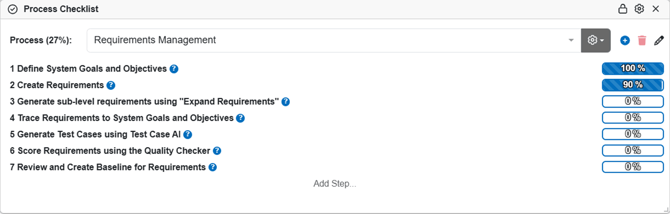
Figure 1: Process Checklist Widget
Adding the Process Checklist Widget to Your Project Dashboard
-
Open your project and navigate to the Project Dashboard.
-
Click the Blue "+ Add Widget" button in the dashboard toolbar.
-
Search for or type in Process Checklist from the list of available widgets.
- Configure the widget options in the modal:
- Widget Title: Customize the title (defaults to "Process Checklist").
- Note: A highlighted warning appears: "Creating a Process Checklist Widget will add sample entities to the Project Database, if they do not already exist."
This means Innoslate will automatically create the default out-of-the-box processes and tasks (as detailed below) if your project doesn't already have them. This helps you get started quickly with recommended workflows.- These newly added Processes and Tasks are now Task entities in your project and contain all the Task attributes to help complete your processes.
- Use Percentages in Completion Tracking: Toggle this ON (default) to display progress as percentages for each task and process. Toggle OFF if you prefer simple checkbox completion without percentages.
- Click Add to place the widget on your dashboard. (You can toggle "Save to Project" ON if you want this widget configuration saved as a project default for everyone in the project to see.)
Once added, the widget will appear on your dashboard showing overall progress and selectable process sections.
Using the Process Checklist Widget
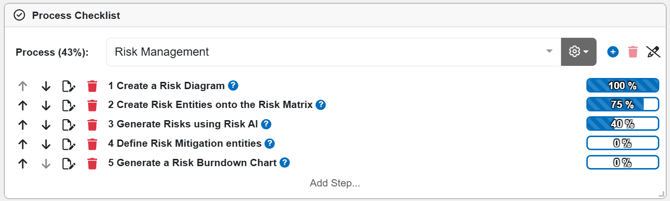
Figure 2: Process Checklist Widget Edit Options
-
Progress Tracking: Each process shows an overall completion percentage based on checked tasks. Individual tasks display a progress bar (starting at 0%). Click on the percentage to activate the 'Change Completion Percent' modal to update this percentage.
- Add Process: Select the blue "+" icon to create a Process or add an existing Process.
- Select 'Save' for changes.
-
Editing Options: Select the pencil icon to reveal editing icons:
-
Up/Down Arrows: Reorder tasks or processes by moving them up or down.
-
Paper& Pen Icon: Modify the task number, name and description.
-
-
Hyperlinks: Tasks provide hyperlinks for convenience.
- Select the task itself to navigate to it's Entity View.
- Select the Question Mark icon for a quick snapshot of the Tasks' name, steps (Description) and related hyperlinks to Help Center for further assistance.
-
Add Step: Add new tasks within a process.
- Select 'Set' for changes.
-
Customizing the Widget: Click the gear icon in the widget header to configure settings, such as renaming the widget, turning on/off the percentage completions, and 'Save to Project' toggle.
-
Lock the Widget: Click the lock icon in the widget header to lock the widget in its place on the Project Dashboard.
- Trash Icon: Deletes custom processes only.
The widget promotes consistency by guiding users through recommended steps while allowing flexibility for custom workflows.
Because Processes and Tasks are Task entities, users can utilize other views such as the Kanban Board or Gantt Chart for other Program Management activities.
Out-of-the-Box Processes and Tasks
Innoslate provides the following default processes with detailed tasks, including descriptions and step-by-step instructions.
Systems Modeling
1. Create an Action/Activity Diagram
Description: Define functional behavior flows or operational sequences within the system.
Innoslate Instructions:
-
Navigate to the Diagrams Dashboard → “Create new Diagram”.
-
Create a new “Action Diagram” in the LML Diagrams section (or “Activity Diagram” for SysML).
Help Center Links: Action Diagram & Activity Diagram
2. Develop System Operational View using the Asset Diagram
Description: Represent physical and logical system assets and their interconnections.
Innoslate Instructions:
-
Navigate to the Diagrams Dashboard → “Create new Diagram”.
-
Create a new “Asset Diagram” in the LML Diagrams section.
-
Drag and drop Asset entities into the diagram canvas.
-
Create conduit connections between assets.
Help Center Link: Asset Diagram
3. Open the Diagrams in a Spider Diagram
Description: Visualize relationships between all models and entities in a centralized view.
Innoslate Instructions:
-
From the Action/Activity/Asset diagram view, click “Open” and choose “Spider Diagram”.
-
Review traceability and impact analysis.
Help Center Link: Spider Diagram
4. Use Additional SysML Diagram Types as Needed
Description: Enhance modeling with SysML-style diagrams such as BDD, IBD, or Sequence.
Innoslate Instructions:
-
Navigate to the Diagrams Dashboard → “Create new Diagram”.
-
Select options under the SysML section.
5. Use Additional General Diagram Types as Needed
Description: Create general-purpose diagrams (e.g., Radar, IDEF0, Tree) for brainstorming or documentation.
Innoslate Instructions:
-
Navigate to the Diagrams Dashboard → “Create new Diagram”.
-
Select options under the General section.
Risk Management
1. Create a Risk Diagram
Description: Represent project and product risks in a Risk matrix.
Innoslate Instructions:
-
Navigate to the Diagrams Dashboard → “Create new Diagram”.
-
Create a new “Risk Diagram” in the General Diagrams section.
Help Center Link: Risk Diagram
2. Create Risk Entities onto the Risk Matrix
Description: Position risk entities within the Risk Matrix according to probability and consequence.
Innoslate Instructions:
-
Drag and drop the Risk entity onto the Risk matrix canvas.
-
Define attributes: Number, Name, Description, Consequence Description, Consequence %, Probability %.
Help Center Link: Risk Matrix
3. Generate Risks using Risk AI
Description: Automatically identify potential risks from system requirements or test artifacts.
Innoslate Instructions:
-
Navigate to the Risk Diagram.
-
Select “Generate Risk” in the diagram toolbar.
-
Select a target entity, generate ideas, and approve up to 3 risks.
Help Center Link: Risk AI
4. Define Risk Mitigation entities
Description: Document mitigation plans to reduce risk consequence or probability.
Innoslate Instructions:
-
Open each Risk in Entity View → Add Related Entity → “mitigates”.
-
Relate mitigations to time allocations using “occurs”.
Help Center Link: Utilizing existing Datasets
5. Generate a Risk Burndown Chart
Description: Visualize risk reduction over time to monitor management effectiveness.
Innoslate Instructions:
-
Navigate to the Risk Diagram and “Open” the “Risk Burn-down” Chart.
Help Center Link: Risk Burndown Chart
Project Management
1. Create a Timeline Diagram
Description: Visualize the sequence of project event timelines, milestones, and dependencies.
Innoslate Instructions:
-
Navigate to the Diagrams Dashboard → “Create new Diagram”.
-
Create a new “Timeline Diagram” in the General Diagrams section.
Help Center Link: Timeline Diagram
2. Add Timeline and Milestone Events
Description: Define specific project checkpoints and milestones.
Innoslate Instructions:
-
Drag and drop “Timeline” and “Milestone” nodes onto the canvas.
-
Define Number, Name, Description, Start, and Duration.
Help Center Link: Timeline Events
3. Create Dependencies within the Timeline
Description: Link tasks to define predecessor-successor relationships.
Innoslate Instructions:
- Drag a connector line between timeline nodes.
Help Center Link: Timeline Dependencies
4. Open the Timeline in a Gantt Chart
Description: View the project schedule in Gantt format for resource tracking.
Innoslate Instructions:
-
From the Timeline diagram, click “Open” → “Gantt Chart”.
-
Adjust durations or dependencies.
Help Center Link: Gantt Chart
5. Open the Timeline in a Kanban Board for Task Management
Description: Manage tasks in an agile view, updating progress across workflow stages.
Innoslate Instructions:
-
From the Timeline diagram, click “Open” → “Kanban Board”.
-
Adjust durations, assignments, or percent complete.
Help Center Link: Kanban Board
Verification & Validation
1. Identify Requirements and Verification Models
Description: Determine which requirements need verification activities or validation evidence.
Innoslate Instructions:
-
Navigate to the Requirements dashboard and inspect requirements.
-
Optionally, create an “Independent Verification & Validation Plan” Document.
2. Develop Detailed Test Case Procedures
Description: Document step-by-step procedures for each test case.
Innoslate Instructions:
-
Navigate to the Test Suite Dashboard.
-
Create a new Test Suite (use templates if desired).
Help Center Link: Test Case Procedures
3. Establish Relationships between Test Cases and Corresponding Requirements/Models
Description: Link test cases for full traceability.
Innoslate Instructions:
-
Use the “Verifies” relationship in the Relationships tab.
-
Test Cases can relate to diagrams or other entities as appropriate.
4. Define the Expected Results for Each Test Case
Description: Ensure test cases have clear success criteria.
Innoslate Instructions:
-
- Input Number, Name, Test Case Scenario, and Expected Results.
5. Update Test Case Status to Reflect Test Progress and Outcomes
Description: Record progress, results, and approval status.
Innoslate Instructions:
-
Open Test Suite Document.
-
Toggle Status (e.g., Planned, In Progress, Passed, Failed).
-
Use roll-up for overall tracking.
Requirements Management
1. Define System Goals and Objectives
Description: Establish foundational mission intent and high-level goals. These guide all downstream requirements and models.
Innoslate Instructions:
-
Go to Documents Dashboard → "Create Document".
-
Use the Concept of Operations Document type (templates available).
2. Create Requirements
Description: Define functional and non-functional requirements.
Innoslate Instructions:
- Go to Documents Dashboard → “Create Document”.
- Use the Requirements Document type (templates available).
- Derive from goals and objectives.
Help Center Link: Requirements Document
3. Generate Sub-Level Requirements using "Expand Requirements"
Description: Decompose parent requirements into children using AI.
Innoslate Instructions:
-
Select parent requirement → “More” → “Expand Requirements” → “Generate Children”.
-
Review and approve.
4. Trace Requirements to System Goals and Objectives
Description: Ensure full coverage and traceability.
Innoslate Instructions:
-
Open requirement → Relationships tab → “traced from”.
-
Or view in Traceability Matrix.
Help Center Link: Traceability Matrix
5. Generate Test Cases using Test Case AI
Description: Automatically produce test cases from requirements.
Innoslate Instructions:
-
Select requirement → “More” → “Generate Test Case”.
-
Provide context, review, and create.
Help Center Link: Test Case AI
6. Score Requirements using the Quality Checker
Description: Assess requirement quality against INCOSE guidelines.
Innoslate Instructions:
-
Open document → “More” → “Quality Checker”.
-
Review Attributes tab feedback.
Help Center Link: Quality Checker
7. Review and Create Baseline for Requirements
Description: Capture an AS-IS baseline for version control.
Innoslate Instructions:
-
Open document → “More” → “Baseline”.
-
Input name and signature.
-
View in Baselines sidebar.
Help Center Link: Baselines
This widget helps teams stay aligned with MBSE best practices while providing visibility into project progress directly from the Project Dashboard.