
The AI File Package system is a new feature in Innoslate v4.12.3 that allows you to upload and organize files into packages for use with the AI Assistant. These file packages enable the AI to reference specific documents or data during queries, enhancing accuracy and context. Note that this feature is not compatible with the Ask Sage model; it will be hidden if an Ask Sage model is selected.
This feature uses Retrieval-Augmented Generation (RAG) — a technique where the AI retrieves relevant content from your uploaded documents and uses it to ground its responses, rather than relying solely on its general training data. This means answers are more accurate and specific to your project's actual files.
Key Features
-
Supported File Types: The AI File Ingester accepts a wide range of text-based file types, including .txt, .csv, .html, .c, .cpp, .css, .h, .java, .js, .md, .py, .json and more. Additionally, it supports .pdf, .xml, .doc, .docx, .xls, and .xlsx files.
-
Package Scope: File packages are tied to the specific organization and project where they are created. For example:
-
A package created in the "Demo" organization won't be available in the "SPEC" organization.
-
A package created in "SPEC Project 12" won't appear in "SPEC Project 18" or on the "SPEC" organization dashboard.
-
-
Size Limits: Each file package is limited to a maximum of 100 pages or 32MB of total content.
-
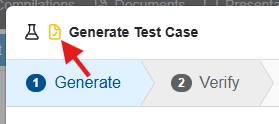
Activation Indicator: Look for the yellow paper check icon on the AI modal (whether you're using the AI Assistant or an AI Agent, such as Test Case AI, Requirements AI, etc.) to confirm that file packages are enabled for your AI session.
Where You Can Use File Packages
SE Lifecycle Agents
AI Text Tools
AI Chat
- AI Assistant (Use Case below)
- Help Bot
How to Create a File Package
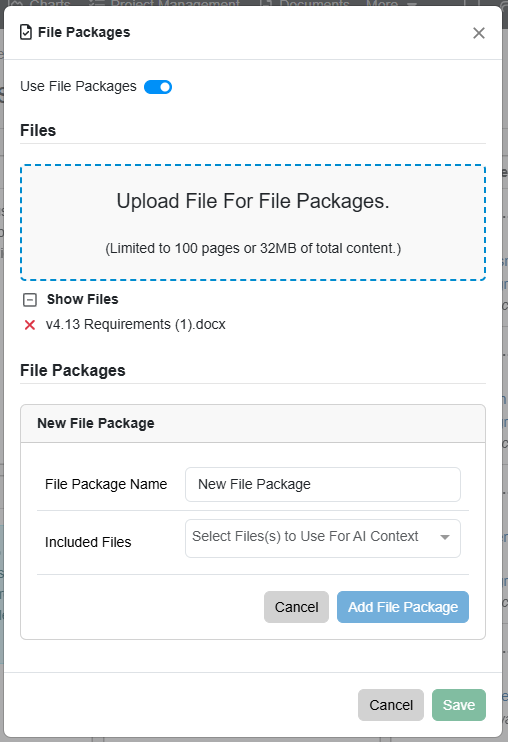
To create a file package, follow these steps:
-
Navigate to the Desired Project: Access the Help Menu: Click the "?" help icon in the navigation bar.
-
Select AI File Packages: Choose "AI File Packages" from the menu options.
-
Toggle On File Packages: Enable the "Use File Packages" toggle if it's not already on.
-
Upload Files: Upload your desired files. Ensure they meet the supported types and size limits.
-
Create a New File Package:
-
Click "Create File Package."
-
Enter a name for the package (e.g., "New File Package").
-
Select the files to include from your uploaded list.
-
Click "Add File Package."
-
-
Repeat as Needed: If you want to create multiple packages, repeat steps 6a-6d.
-
Save Changes: Click "Save" to finalize and store the packages.
Managing Files and File Packages
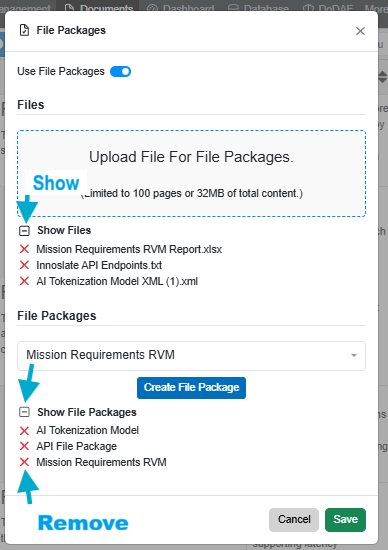
To modify and remove Files and File Packages:
Navigate to the File Package Dialog:
-
Navigate to the Desired Project: Enter the organization and project where you want the file package to be associated.
-
Access the Help Menu: Click the "?" help icon in the navigation bar.
-
Select AI File Packages: Choose "AI File Packages" from the menu options.
Viewing and Removing Individual Files
- Click "Show Files" to expand the list of uploaded files.
- Click the red X next to any file to remove it from the system.
-
There's no direct rename option — to rename a package, remove it and re-create it (re-uploading files if needed) under the new name.
Viewing, Removing, and Renaming File Packages
-
Click "Show File Packages" to expand the list of existing packages.
-
Click the red X next to any package name to remove that package.
-
There's no direct rename option — to rename a package, remove it and re-create it (re-uploading files if needed) under the new name.
Saving Your Changes
- Once your files and packages are set up as needed, click Save to apply your changes, or Cancel to discard them.
Use Case Example: How to Use a File Package with Innoslate's AI Assistant
- Open the relevant AI feature (e.g., click the "?" help icon and select "AI Assistant," or open an AI Agent modal such as Generate Test Case).
-
Confirm the yellow file-package icon is showing, indicating file packages are active.
-
Reference the package by name if using multiple file packages (e.g., "Reference the 'Requirements Docs' file package and summarize the key points.") — you can skip naming it if only one package exists.
- Ask questions or request analyses as needed. The AI will use the referenced content — via RAG — to provide informed, context-aware responses.
To try the AI File Package Feature with our AI Requirements Generation feature, we highly suggest our AI Walkthrough: Requirements Generation from a Model: An AI Tokenization Walkthrough Guide
FAQ
-
Does this only work with the AI Assistant?
No. Any AI prompt in Innoslate can take advantage of AI File Packages — this includes AI Agents (such as Test Case AI's "Generate Test Case" feature), not just the AI Assistant. If file packages are enabled for your project, look for the yellow file-package icon on whichever AI modal you're using to confirm it's active.
-
What is Retrieval-Augmented Generation (RAG)?
RAG is the technique behind AI File Packages: instead of relying only on general training data, the AI retrieves relevant content directly from your uploaded documents and uses it to inform its response — giving you more accurate, project-specific answers.
-
Why don't I see the file package option?
Confirm you're not using an Ask Sage model — this feature is currently hidden/unsupported for that model.