
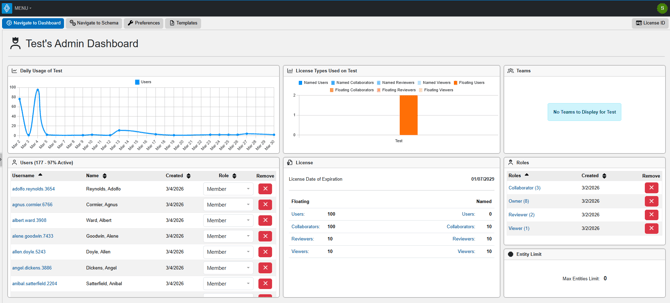
Admins have exclusive access to the Admin Dashboard, a vital tool for managing organizational functions. This feature is reserved solely for organization and Super Administrators.
The Admin Dashboard enables Administrators to:
- Add or remove organization users
- Administer organization roles
- Assign user roles
- Manage teams
- Assign users to specific teams
- View usage metrics
- Manage licenses
- Set an Organization Schema
- Set Organization Preferences
- Import Organization Document Templates
- Track a User's Activty with the User Activity Dashboard
Navigate to the Admin Dashboard
There are 2 ways to navigate to the Admin Dashboard. From the Organization Dashboard or from the Menu Dropdown.
From Organization Dashboard
1.) From your Organization Dashboard:
Examples of URL format to your organization’s dashboard by environment:
Cloud: https://cloud.innoslate.com/yourslughere/dashboard
GovCloud: https://gov.innoslate.com/yourslughere/dashboard
Enterprise: http://localhost:8080/yourslughere/dashboard
-
-
Local host URL- if the domain is changed please refer to your Admin.
-
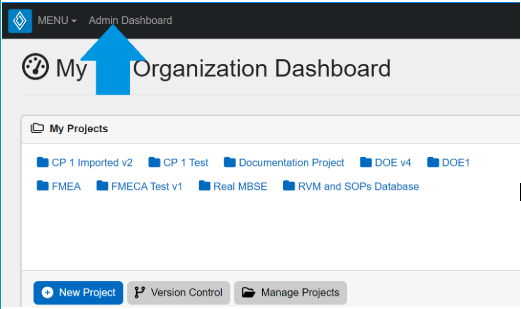
2.) Select the Admin Dashboard option on the top left of the screen on the Navigation Bar, next to the Menu and Innoslate logo.
From the Menu Dropdown
-
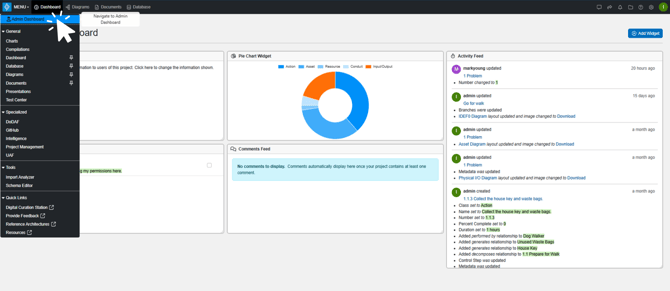
From anywhere in the tool, select 'Menu' on the top left next to the Innoslate logo.
- Select 'Admin Dashboard' on the Menu dropdown.
Admin Dashboard Panels
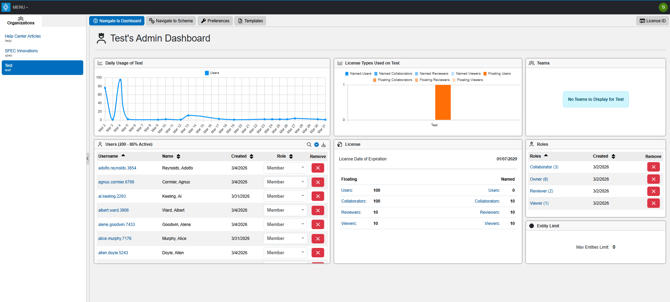
There are 7 Panels on the Admin Dashboard:
And 4 Toolbar Options:
- Navigate to Organization Dashboard
- Set an Organization Schema
- Set Organization Preferences
- Set an Organization Wide Banner
- Set up AI for the entire Organization
- Import Organization Document Templates (v4.14)
For detailed information about each individual panel, please click on the corresponding hyperlink.
To continue learning about Administrator’s User Guide, Click Here.
(Next Article: Admin Dashboard Fixed Panels)