
In Innoslate version 4.12.3.0, users have the flexibility to switch between Light Theme, Dark Theme, and Browser Theme at any time. Your selected theme is linked to your account, ensuring a consistent experience across all devices and browsers used to access Innoslate. To change your theme again in the future, simply follow the steps outlined below.
Steps to Change Your Theme
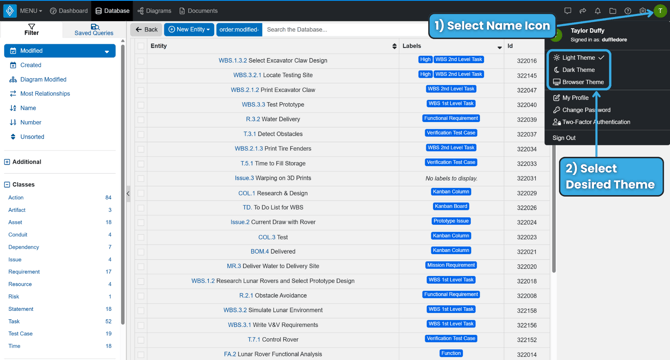
- Sign in to your Innoslate Environment.
- Find and Select your Name Icon (Name Initial, top right) for the profile menu to drop.
- Select desired theme:
- Light Theme- White background with dark text (Innoslate's default)
- Dark Theme- Black background with light text
-
- Browser Theme-Automatically follows your browser’s or OS settings: light/dark mode setting
Theme Options Explained
| Theme | Description | Best For |
| Light Theme | White background with dark text (Innoslate’s default) | Bright environments, traditional look |
| Dark Theme | Black background with light text | Low-light settings, reduced eye strain |
| Browser Theme | Matches Innoslate to your set light/dark mode per your browser's or operating system's settings | Users who already switch modes system-wide |
How to Configure Your Settings for Browser Theme
Only relevant if you choose 'Browser Theme' in Innoslate.
In Innoslate, selecting Browser Theme (as opposed to Innoslate's custom "Light" or "Dark" themes) allows the application to dynamically adapt its appearance—such as colors, contrast, and UI elements like buttons, menus, sidebars, and scrollbars—to your browser's native theme and OS-level preferences (e.g., light/dark mode, accent colors). This provides a seamless, system-integrated look but relies on proper browser configuration for optimal results in Innoslate.
Why Configure Browser/OS Settings for Browser Theme?
Configuring your browser and OS settings when using Innoslate's Browser Theme option ensures optimal visual consistency and comfort. Key benefits include:
- Seamless alignment with your preferred light or dark mode, reducing eye strain during extended work sessions.
- Automatic adaptation to your system's light/dark mode schedule—such as switching to dark mode in the evening and light mode during the day—providing a more natural and ergonomic experience without manual intervention.
Quick Steps Before Starting:
Update your browser to the latest version (Chrome 132+, Edge 132+, Firefox 133+, Safari 18+ as of Dec 2025).
Align OS theme:
- Windows (Settings → Personalization → Colors → Light/Dark);
- macOS (System Settings → Appearance → Light/Dark/Auto).
In Innoslate, confirm Browser Theme is selected and hard-refresh your browser (Ctrl/Cmd+Shift+R).
Browser Configuration Guide
| Browser | Native Page/UI Theme? | How to access Appearance Settings | Key Theme Features |
| Google Chrome | Yes | ⋮ → Settings → Appearance | Built-in theme picker on New Tab Page (“Customize Chrome”), color + image themes, Chrome Web Store themes |
| Microsoft Edge | Yes | ⋯ → Settings → Appearance (first section in sidebar) | Full theme gallery, color themes, custom images, automatic dark/light, accent-color sync with Windows |
| Mozilla Firefox |
Yes |
☰ → Settings → General → “Website appearance” / “Colors…” button or ☰ → Add-ons and Themes → Themes |
System themes, Colorways (pre-installed color variants), Firefox Color tool, thousands of add-on themes |
| Safari |
Limited (page-tinting only) |
Safari → Settings… (⌘,) → Appearance tab or Safari → Settings… → Tabs → “Show color in tab bar” |
Follows macOS Light/Dark mode only; Also follows Invert mode in Accessibility |
Troubleshooting & Best Practices for Browser Theme in Innoslate:
Cross-Browser Testing: Chrome/Edge (Chromium) most consistent for Innoslate's CSS; Firefox excels in custom colors; Safari for macOS parity.
OS Sync: Enable "System Default" everywhere—Innoslate detects color scheme for auto-adaptation (e.g., dark mode during evening Roll-Up reviews, or light mode during the day).
Things aren't looking right? Revert Changes in browser and clear cache if Innoslate lags.
-
Chrome/Edge: "Reset to default";
-
Firefox: Light theme;
-
Safari: macOS Light.